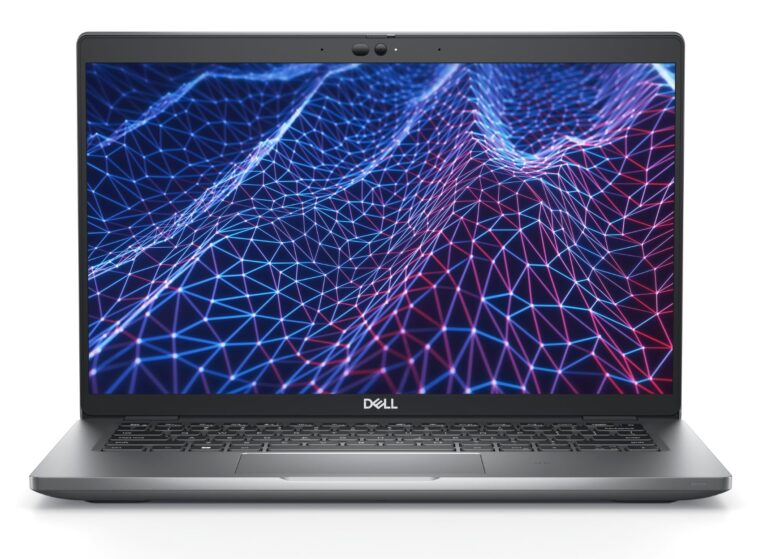
How to Buy a Refurbished Laptop: A 15-Point Checklist Before You Pay
A good refurbished laptop can give you 80% of a new machine’s performance for half the price. A bad one can turn into a paperweight within a month. The difference usually comes down to a few minutes of checking before you hand over your money.
Most people who regret buying refurbished didn’t get unlucky. They skipped a step. They trusted a photo, ignored the warranty terms, or never opened the battery report. None of these checks need technical skill, and you don’t have to be a “computer person” to do them.
This checklist walks you through 15 things to verify, in the order you’ll actually meet them: first when choosing a seller, then when reading the specs, then with the laptop in front of you, and finally at the payment counter. Keep it open on your phone while you shop.
Part 1: Before you shop
1. Know who actually refurbished it
The word “refurbished” has no legal standard in most markets. One seller means a full teardown, part replacement and 40-point testing. Another means a wipe with a damp cloth and a fresh copy of Windows.
There are three broad types of sellers:
- Manufacturer refurbished: The brand itself (Dell, HP, Lenovo, Apple) restores the machine. This is the safest option, usually with the best warranty, and also the priciest.
- Certified refurbishers: Established companies that buy off-lease corporate laptops in bulk and restore them in a proper facility. Good value if the company has a long track record and a real service address.
- Individual or marketplace sellers: Anyone listing a “refurbished” laptop online. Some are honest small shops; some are not. Treat these with the most caution.
Before anything else, search the seller’s name with words like “complaint” or “warranty claim”. How a business handles problems tells you more than any five-star review.
2. Understand the cosmetic grade
Most refurbishers sort laptops into grades based on how they look. The labels vary, but the pattern is usually similar:
| Grade | What it usually means |
|---|---|
| A / Excellent | Very light signs of use, hard to spot from arm’s length |
| B / Good | Visible scratches or scuffs on the lid or palm rest |
| C / Fair | Heavy wear, dents, or marks on the screen bezel |
Grades describe the outside, not the inside. A Grade C laptop can run perfectly, and a Grade A can have a tired battery. Ask the seller for their exact grading definition and real photos of the unit you’ll receive, not stock images.
3. Read the warranty, not just its length
“1-year warranty” sounds reassuring until you read the fine print. Ask these questions directly:
- Does it cover the battery, or is the battery excluded?
- Is it a replacement warranty, a repair warranty, or store credit?
- Who pays shipping if the laptop needs to go back?
- Is service done by the seller or by an authorised centre?
As a rule, don’t buy a refurbished laptop with less than 6 months of warranty. A seller who trusts their own testing will happily offer a year.
4. Check the return window
Warranty covers faults. A return policy covers everything else, like a screen that looks dimmer than you expected or a keyboard you simply hate typing on.
Look for at least 7 days, ideally 10 to 15, with a full refund rather than store credit. Use that window seriously. Run the laptop hard during those days, because many faults (overheating, random shutdowns, a failing drive) only show up under real use.
Part 2: Read the specs like a skeptic
5. Find out how old the processor really is
A listing that says “Intel Core i7” tells you almost nothing. An i7 from ten years ago is slower than a recent i3. What matters is the processor’s generation, which you’ll find in the full model number (for example, the digits after “i5-” or “Ryzen 5”).
Copy that model number into a search engine and note its launch year. Then ask two questions:
- Is the chip still supported by the current version of Windows or macOS?
- Was it released within roughly the last five to six years?
If the answer to either is no, the laptop may stop getting security updates soon, and that’s the real end of its useful life. A cheap price doesn’t make up for that.
6. Make sure RAM and storage fit today’s needs
Two rules hold up no matter when you’re reading this:
- Storage must be an SSD. An old spinning hard drive (HDD) will make even a good processor feel painfully slow. If the listing says “HDD” or just “500 GB” with no type, ask.
- RAM should at least match what new entry-level laptops ship with. Whatever a basic new laptop comes with this year is the floor for comfortable everyday use. If you multitask heavily, code or edit photos, aim for double that.
Also ask whether RAM and storage can be upgraded later. Many business laptops have open slots, which makes a slightly under-specced unit a smart buy. Many thin consumer models have memory soldered to the board, so what you buy is what you keep forever.
7. Ask for the battery health report
The battery is the part most likely to be worn out, and the part sellers are most likely to stay quiet about. Don’t accept “battery is good”. Ask for numbers.
- On Windows: Open Command Prompt and type
powercfg /batteryreport. It creates a report showing the battery’s design capacity and its full charge capacity. Divide the second by the first to get health as a percentage. - On a MacBook: Go to System Information (or System Report), then Power. Look at the cycle count and the condition, which should read “Normal”.
As a rough guide, 80% or more is healthy. Between 60% and 80% is usable but expect shorter unplugged sessions. Below that, budget for a replacement battery, or ask the seller to fit a new one before you buy.
8. Confirm the operating system is genuine and the laptop is unlocked
A pirated copy of Windows can stop working, block updates or come bundled with malware. On Windows, open Settings and search for “Activation”. It should say Windows is activated with a digital licence.
Then check for locks that can quietly ruin a purchase:
- BIOS or firmware password: Restart and try to enter the BIOS setup. If it asks for a password you weren’t given, walk away.
- Corporate management: Many refurbished laptops come from company fleets. If you see a message like “managed by your organisation” during setup, the machine may still be tied to its old owner.
- Apple Activation Lock: On a MacBook, the previous owner’s Apple ID must be fully removed. If setup asks for someone else’s login, don’t buy it.
Part 3: Inspect the laptop in person
If you’re buying online, do these checks the day the laptop arrives, while you’re still inside the return window. If you’re at a shop, take your time. A good seller won’t rush you.
9. Test the screen properly
Open a plain white image at full screen, then a plain black one. On white, look for yellow patches, dark spots or faint lines. On black, look for stuck bright pixels and light leaking around the edges.
Turn the brightness all the way up and down. Tilt the lid slowly back and forth while watching the display. If it flickers or goes blank at a certain angle, the display cable is damaged, and that’s an expensive repair.
10. Type on every key and use the trackpad
Open a blank text document and press every key once, including Shift, Ctrl, the function keys and the arrows. A free online keyboard tester makes this quicker, since it lights up each key as you press it.
Check that the keyboard backlight works if the model has one. Then use the trackpad for a minute: click, right-click, two-finger scroll and drag. A trackpad that feels loose or jumps the cursor around will annoy you every single day.
11. Plug something into every port
Carry a pen drive, your phone cable and a pair of wired earphones. Test each USB port, the headphone jack and the charging port. If the laptop has HDMI and you’re at a shop, ask to connect it to a monitor.
While you’re at it, test the basics people forget:
- Webcam (open the camera app)
- Microphone (record a short voice note)
- Speakers at high volume, listening for crackle
- Wi-Fi and Bluetooth (connect to your phone’s hotspot and pair your earbuds)
12. Look closely at the body and hinges
Cosmetic scratches are fine. Structural damage isn’t. Open and close the lid ten times. The hinges should feel firm and even on both sides, with no creaking or wobble.
Then flip the laptop over and check:
- All screws are present and none look stripped
- No cracks near the hinges or corners
- The battery area isn’t bulging (a raised palm rest or a trackpad that clicks oddly can be a sign of a swollen battery, which is a safety risk)
- The bottom panel sits flat, with no gaps
Missing screws or tool marks don’t always mean trouble, but they do mean someone opened it, so ask what was replaced.
13. Run it hard and listen to the fans
A laptop that seems fine for five minutes can overheat after twenty. Play a high-resolution video or open a dozen browser tabs and let it work for at least 15 minutes.
What you’re watching for:
- Fans that roar at idle, or grind and rattle
- A keyboard area too hot to rest your hands on
- Sudden slowdowns, freezes or shutdowns
While it runs, check the drive’s health too. On Windows, a free tool like CrystalDiskInfo shows the SSD’s health status in one screen. Anything other than “Good” is a red flag.
Part 4: Before you pay
14. Match the serial number and get a proper invoice
The serial number is printed on a sticker under the laptop and also stored inside the system, where you can see it in the BIOS setup screen (on a MacBook, under About This Mac). Make sure the two match each other and the number on your invoice.
With that serial number, you can also look the laptop up on the manufacturer’s support website. It shows the exact original configuration and whether any factory warranty remains. If the site says it shipped with less RAM or a different processor than the listing claims, something’s off.
Always get an invoice that names the seller, the model, the serial number, the price and the warranty terms. In India, insist on a GST invoice from a registered business. Without one, your warranty is just a promise.
15. Compare the price against new and used options
A refurbished laptop only makes sense if the saving is real. Before paying, spend five minutes comparing:
- The price of a new laptop with similar performance. If the gap is small, the new one’s full warranty may be worth the extra money.
- The same model on other refurbished sites. Prices for identical units can differ a lot between sellers.
- The same model on used marketplaces. Refurbished should cost more than used, because you’re paying for testing and a warranty, but not wildly more.
A sensible refurbished deal usually lands somewhere around 40% to 60% below the new price of a comparable machine. Much cheaper than that, and it’s worth asking why.
The quick checklist
Save or print this and tick it off as you go.
- 1. Seller is a manufacturer or an established refurbisher with a real address
- 2. Grade definition and real photos of the actual unit
- 3. Warranty of at least 6 months, with battery coverage confirmed
- 4. Return window of 7+ days with a full refund
- 5. Processor launched within about 5 to 6 years and still supported by the OS
- 6. SSD storage, and RAM at least equal to new entry-level laptops
- 7. Battery health of 80% or more, from an actual report
- 8. Genuine, activated OS; no BIOS password, company lock or Apple ID lock
- 9. Screen free of dead pixels, patches and flicker
- 10. Every key, the backlight and the trackpad work
- 11. All ports, webcam, mic, speakers, Wi-Fi and Bluetooth work
- 12. Firm hinges, no cracks, no swollen battery
- 13. No overheating or fan noise after 15+ minutes; drive health “Good”
- 14. Serial numbers match; proper invoice (GST invoice in India)
- 15. Price is fair against new, other refurbished and used options
Red flags: walk away if you see these
- The seller won’t share real photos or the full model number
- “No warranty, but it’s tested”
- Payment only by cash or direct transfer, with no invoice
- The price is far below every other listing for the same model
- Pressure to decide right now because “another buyer is interested”
Frequently asked questions
Is a refurbished laptop the same as a second-hand one? No. A second-hand laptop is sold as-is by its previous owner. A refurbished laptop has been tested, cleaned, repaired where needed and resold with a warranty. That testing and warranty is what you’re paying the extra for.
How long does a refurbished laptop last? A well-chosen business-grade machine can easily give three to five more years of everyday use. Choosing a recent enough processor (point 5) matters more than anything else here, because it decides how long you’ll get software updates.
Which brands are best to buy refurbished? Business lines such as Lenovo ThinkPad, Dell Latitude and HP EliteBook are popular for good reason. They’re built to last, easy to repair and upgrade, and plentiful in the refurbished market because companies replace them in bulk. Refurbished MacBooks also hold up well if the model still gets macOS updates.
Should I replace the battery straight away? Only if the health report shows it below about 70% or you need long unplugged hours. Otherwise, use it and replace it when runtime starts to bother you.
The bottom line
Buying refurbished is one of the smartest ways to get a capable laptop without overspending, and it keeps a working machine out of a landfill. The risk lies almost entirely in the checks people skip.
Go through these 15 points, take your time, and don’t let a low price rush you. If a seller gets uncomfortable when you ask questions, that’s your answer. If they welcome them, you’ve probably found a laptop worth buying.